There are 2 major functions in the Utilities Tab of Database 32, Actions and Patient Status Maintenance.
Actions is special utilities and functions that perform specific forms of maintenance on the system. These items should NOT be accessed without the direct guidance of a Life Systems Software Technical Support staff member. Running any of these features or functions without proper direction may corrupt the database resulting in the loss of critical patient data.
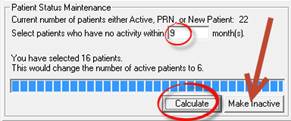
Patient Status Maintenance (figure 4) is a special utility that changes the status on a large group of patients from Active to Inactive based on how many months it has been since the patient’s last visit in the office.
The Patient Status Maintenance utility is best used on the main server computer, and ChiroSuiteEHR should be shut down on all work station computers until the process has been completed.
In other words, there is the ability to make Inactive all patients that have not been in the office for a specific number of months. An example of when this is useful is for those working on the Medicare Meaningful Use criteria which apply to all Active patients. If patients that are outside the date range parameter for Medicare’s purposes are still listed as Active, then the Meaningful Use criteria will be skewed.
Figure 4
To make the patients Inactive determine the number of months during which the patients did not have any visits. Enter that number in the box labeled Select patients who have no activity within…month(s). Click on the Calculate button. On the top line, the number of current Active patients is displayed. After clicking Calculate, Database 32 shows the number of patients selected as well as the the new number of Active patients. If this appears to be correct, click the Make Inactive button in order to complete the process. Depending on the number of patients begin made Inactive as well as the processing power of the computer, it make take several minutes to complete.
If any of the Inactive patients returns for additional care, simply open the patient account and restore the Status to Active in the Patient Personal window.