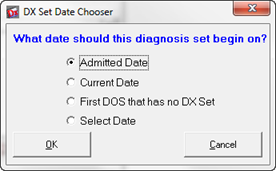
To add a diagnosis set to a patient file, open the patient’s account and go to the Diagnosis Window as described above. Click the New button. If User DX Date Chooser has been turned on, the Date Chooser pop up will appear (figure 7).
Figure 7
Choose 1 of the 4 selection options to set the date for this new diagnosis
•Admitted Date – This is the first date the patient was in the office. It is set in the Patient Info window in the Admitted Date field
•Current Date – also known as today’s date
•First DOS that has no DX Set – ChiroSuiteEHR will scan through the dates of service for the patient and set the diagnosis date to the first date of service that does NOT have a diagnosis applied to it. This is extremely important for correlation with insurance claims.
•Select Date – This option will open a calendar. Click the date on the calendar to set the date that this diagnosis set began on
After the date has been set for the Diagnosis, it appears in the Established Sets drop down box (figure 8).
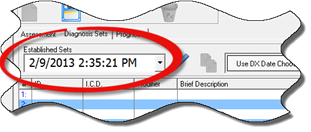
Figure 8
Whenever there is a need to view an older Diagnosis Set for a patient, click on the drop down arrow in the Established Sets box. Every diagnosis that has been entered for the patient will be listed by date. Click on the desired date, and the past Diagnosis Set will be displayed.