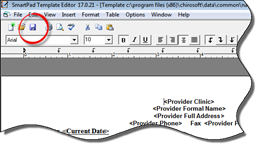
Once templates have been created or modified in SmartPad, they must be saved to specific locations to be functional in ChiroSuiteEHR. When a newly created template is saved for the first time, click on the Save icon (figure 9).
Figure 9
The Save Template As window (figure 10) opens.
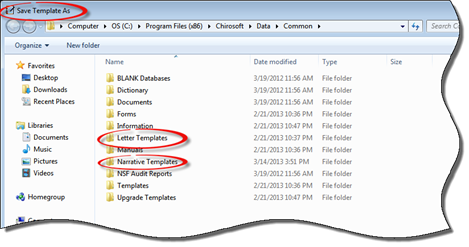
Figure 10
Letter Templates will be accessible through the Letters option in the patient file, both in ChiroOffice and ChiroPadEMR. The Letter Templates are also accessible for bulk production in ChiroOffice by selecting Tools and then clicking on Letters. Narrative Templates are available only in the Narratives section of a patient file in ChiroPadEMR. Double click the location (Letter or Narrative) where the template should be saved. The section selected will open (figure 11). Verify that it is the correct location and type in the name of the new template at the bottom of the window in the text box labeled File Name.
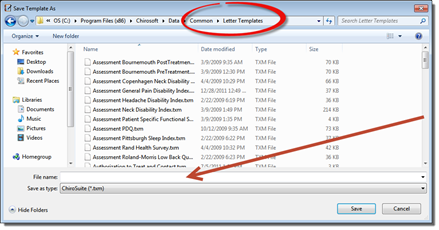
Figure 11