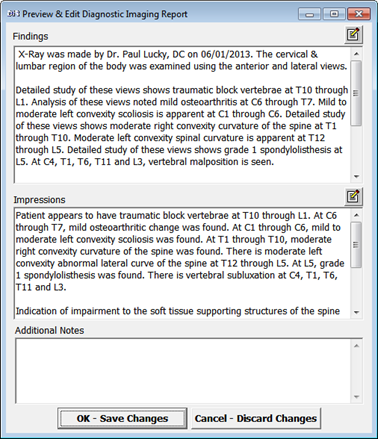
Once all the entries have been made, click on the Save icon at the upper left of the DIR window. Upon clicking Save, the DIR will now generate in dictation quality English (figure 36).
Figure 36
At this point, there is the option to click into the report and edit/modify the entries. There is also the option to enter Additional Information on this window. Data can be entered in this text box (and all other text boxes in ChiroPadEMR) by [1] typing it in, [2] drag and drop in from Paraphrase, [3] copy and paste from word processing programs, [4] dictate using Dragon Naturally Speaking, and [5] writing it on a tablet that has handwriting recognition which converts what was written into typed text.
When the DIR is complete and contains all the desired information, click the OK- Save Changes button. The DIR is now saved as an independent report as well as generating into today’s current SOAP note, provided that the SOAP note is generated AFTER the DIR.