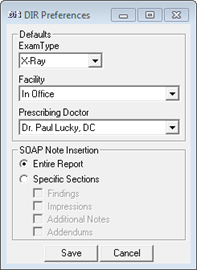
The very first time the DIR window is opened, or at any time that it is necessary to change the Preferences functions for the DIR, click on the Preferences button at the upper right. The Preferences mini-window (figure 32) is where default options are selected for specific fields on the DIR screen. Entering the defaults in the Preferences window will save time when entering a new DIR for a patient. Note that each of these selections may be overridden when the DIR is being created.
The Preferences are computer specific. If there are multiple providers, each with his/her own computer, the Preferences can be set differently for each provider to enable the findings, report and SOAP notes to appear in the manner that each provider desires. In the event that there is only one computer shared by several providers, then it is critical that each Provider makes the appropriate selection manually on each visit.
Figure 32
In the DIR Preferences window there are 3 drop down selection boxes and a section to determine how much of the DIR will appear in the today’s current SOAP note. Each of the selection boxes answers a question.
•Exam Type – select the most common type of imaging that is being read and interpreted by the doctor in the practice
•Facility – where are the imaging studies usually performed. The selection list includes In Office and all the diagnostic centers that have been entered in the Diagnostic Imaging Catalog
•Prescribing Doctor – who is the doctor that ordered the imaging study. This list includes all the providers in the practice as well as all the doctors that have been entered in the Referring Physicians Catalog.
•Soap Note Insertion – Most practices set the default as Entire Report. This means that the complete DIR will become part of today’s current SOAP note, provided that it is created prior to the generation of the SOAP note. However, there are those offices that prefer to include only a portion of the DIR in the SOAP note. If this is the case, click on Specific Sections and then check off the sections that should be included and leave the others unchecked.
After the selections have been completed, click the Save icon, which returns to the main DIR window. Even though it is performed while in one patient file, once the Preferences have been set, they apply to all patients.