Narrative Reports are typically required in personal injury, automobile and worker’s compensation cases. These are formal reports that are sent to attorneys, employers, insurance carriers, and/or state agencies. They represent the practice as well as providing documentation that will make or break the patient’s case. Narrative Reports need to be professional and concisely demonstrate the patient’s condition to the lay person that reads it.
ChiroSuiteEHR includes some basic Narrative Report templates. SmartPad provides the opportunity for each practice to edit the existing templates, or create new ones, that meet the specific needs of the office.
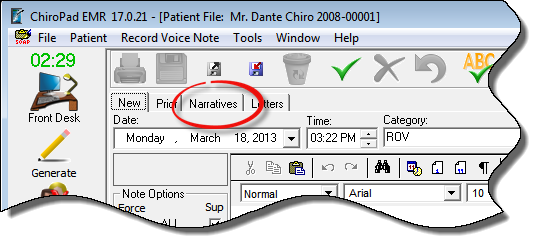
The Narrative Reports can be generated ONLY from within ChiroPadEMR. Open a patient account, and click on the Documents icon (figure 2). Once the Documents window is open, click on the Narrative Tab (figure 9).
Figure 9
The Narrative Tab (figure 10) permits the creation of a new Narrative Report for the patient as well as the ability to complete editing a previously created Narrative or to review a Narrative that has already been submitted.
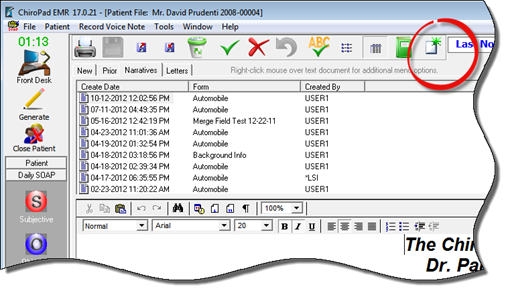
Figure 10
To generate a new Narrative Report, click the New icon that is at the top upper right of the Narrative icon bar. This will open the list of Narrative Report Templates (figure 11) that are in the system. The templates are listed in alphabetical order.
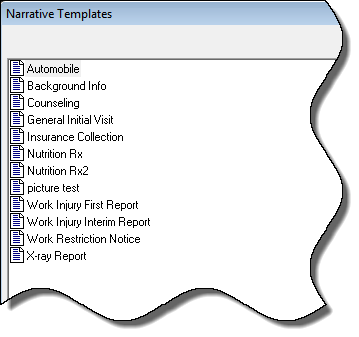
Figure 11
Double click the name of the desired Narrative Report, or single click it and then click OK. The report will generate in the lower portion of the Narrative Tab.
Once the report appears, read through it carefully. Verify that it is correct and accurate, and that it includes all the data that is needed.
The Narrative Report can be edited after it is generated. The window works as a word processor. Additional information can be added by typing, using Paraphrase, or copy and paste from other word processing programs. Items that are not wanted can be deleted by highlighting them and pushing the Delete key on the keyboard. Special items can be bold faced, italicized or underlined.
After creating or editing a Narrative Report, be sure to click the Save icon. It is advisable and recommended to frequently click the Save icon while editing to make sure that all entries are saved. If the computer should freeze before the data has been saved, it may be lost.
A copy of the Narrative Report is saved in the patient’s file and can be accessed and/or reprinted whenever it may be needed.