Whether it is for marketing, education, or some other purpose, having the ability to produce Letters in bulk quantity makes the office significantly more efficient and productive. Since bulk production is more of an administrative function than clinical, the ChiroOffice section of ChiroSuiteEHR includes this bulk production feature.
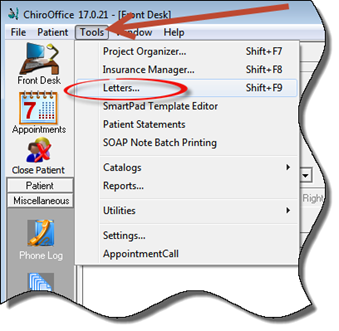
The Letters Bulk Production feature does NOT require a patient account to be open. To access Letters Bulk Production, in the ChiroOffice toolbar select Tools and then Letters (figure 6).
Figure 6
The next item to appear is the IntelliDoc: Letters Selection Box (figure 7). There are 3 possible items to choose from.
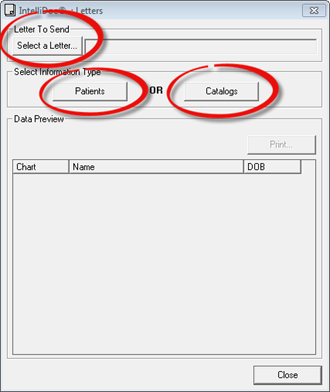
Figure 7
Click on the Select a Letter button to choose the Letter to produce in bulk. This will bring up the list of Letters (figure 4). Click on the Letter name to select it.
The next step is to determine if this Letter is being sent to Patients or to one of the Catalog lists (Attorney, Employer, Referring Physicians, or Diagnostic Center).
If this Letter is for a specific group of patients, or all patients, click the Patients button. Use SmartSelect to generate the list of patients that should receive this letter.
If this Letter is for one of the Catalog lists (Attorney, Employer, Referring Physicians, or Diagnostic Center), click the Catalogs button. In the Select Catalog dialog box (Figure 8), click on the Catalog drop down box and select the Catalog that is to be used. Select either Active or Inactive for the recipients within the catalog. If you want to send the letter to both Active and Inactive, place a check in both boxes. Choose how to sort the letters, either by recipient Name or ID. In the Provider drop down box, pick the provider whose signature should appear at the bottom of the letter. Click OK, and the list of recipients will be generated.

Figure 8
Whether the selections were made for a patient list using SmartSelect or for a Catalog list, the names of the recipients of the Letter will appear in the IntelliDoc: Letters Selection Box (figure 7). Make sure that the correct paper is in the printer and click Print.
Using the data that is in the Patient File or the Catalog, each Letter will be personalized to the individual. Letters sent to patients will be listed in the Patient Letters window (figure 3), with a date and time stamp of when the Letter was produced. After the letters have printed, stuff them in envelopes and mail them.