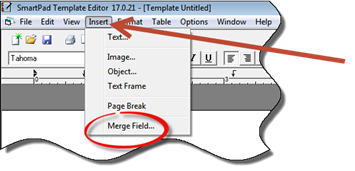
ChiroSuiteEHR enables the personalization of each SmartPad template by the use of Insertion Fields. The Insertion Fields pull information directly from patient files as well as other areas and inserts that piece of data into the template. The Insertion Fields are accessed from the Toolbar in SmartPad (figure 5).
Figure 5
Click the Insert button in the Toolbar, and then select Merge Field. The Insert Field Selection box (figure 6) appears.
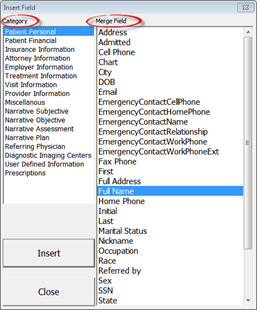
Figure 6
The Insert Field Selection box has 2 columns. The left column lists the categories of Insert Fields. The right column displays all the Merge Fields available for use in the selected Category.
Adding the Merge Field into the Template is simple. Make sure the cursor is at the location in the Template where the Merge Field should be placed. Click on the desired Merge Field so it is highlighted. Now click the Insert button at the lower left of the Insert Field Selection box. Alternatively, double click on the Merge Field. The Merge Field in the Template will be bracketed with left arrow “<” and right arrow “>” characters surrounding the field name (figure 7).
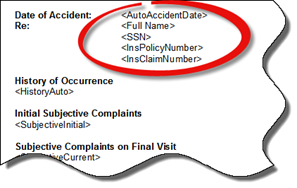
Figure 7
Each Merge Field can be inserted at any location in the Template.