Now it is necessary to place the Tests and Signs in the Folder. Click on the Folder so it is highlighted (figure 41). Look at the box on the lower left of the Customize ChiroPad Orthopedic/Neurological Exams that is labeled Test in Folder. If this box is empty, then NO Tests or Signs will appear in the patient’s Ortho/Neuro window when the Folder is selected.
Add Tests and/or Signs to this box by
1. Verify that the correct Folder is highlighted
2. Find the Tests and/or Signs that should be included in this box in the Available list on the right
3. Click on the Test or Sign to add to the box. If the Tests and/or Signs should appear in alphabetical order, begin the entries from the bottom of the Available list, that is, start at “z” and work up to “a”.
4. Click on the Left Arrow located in the middle of the window and the item from the Available list on the right will now appear in the Test in Folder box on the lower left.
5. In the event that a Test or Sign is incorrectly placed in the Test in Folder box, click to highlight it and then click the Right Arrow located in the middle of the window to remove it from the box.
6. To rearrange the order of the list of Tests and Signs in the box, and therefore, the order that will appear when this Folder is selected in the patient’s Ortho/Neuro window, right click on the item in the Test in Folder box that should be moved either up or down the list
7. A pop up menu appears
8. Click on the appropriate item (Move Up or Move Down) to change the position of the Test or Sign by one line. Repeat as many times as necessary to arrange the list in the desired order.
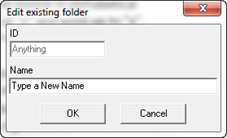
There is also the option to rename a Folder. Right click on the Folder Name to open the pop up menu (figure 45). Click on the Edit button to open the Edit Existing Folder pop up window (figure 7). Type in the new name for the Folder. This function retains all the Tests and/or Signs that have been entered in the folder. The only thing that changes is the Folder Name. Click OK to save the change.
Figure 7