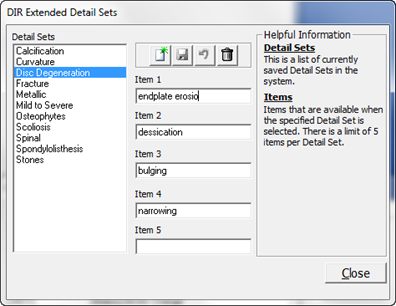
On the Customize DIR Findings window, click on the Extended Detail Sets button to open the DIR Extended Detail Sets window.
Figure 9
When the window opens, it displays the names of the Extended Details Sets that are already in the system. Click on the name of an Extended Detail Set so it is highlighted. Each Extended Detail Set may have up to 5 Items. Each Item is an adjective that helps to describe the Finding that it could be applied to.
To edit an Extended Detail Set, click on the Detail Set to edit so it is highlighted. Click into the Item and modify it as desired. Finally, click the Save icon.
To create a new Extended Detail Set, click on the New icon to open the New DIR Extended Detail Set box (figure 10). Type in the Detail Set Name and click OK.
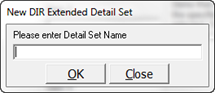
Figure 10
The new Detail Set Name will appear in alphabetical order in the DIR Extended Detail Sets window. Click on the new Detail Set Name so it is highlighted and then enter the Items in the boxes Item 1 to Item 5. After the entries have been completed, click the Save icon.
There may be a time when it is necessary to remove a Detail Set because it is never used or is a duplicate of another Detail Set. To permanently eliminate a Detail Set, click on its name to highlight it, and then click on the Delete (Garbage Can) icon.