
On rare occasions there may be a need to change the date of an Established Set. For example, this may occur when the Diagnosis Set should be dated with the patients first date of service, which corresponds to the Admitted Date, but when it was entered one day or more after the Admitted Date, the selection for Current Date was chosen. To correct this error, click on the Pencil icon (figure 9) just to the right of the Established Sets drop down.
Figure 9
The display will change, separating the date and time, and changing the Pencil icon to a Red Circle icon with a line through it (figure 10).
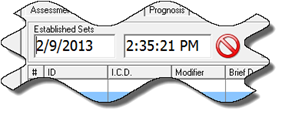
Figure 10
The date can be changed by either [1] clicking into the Date field, push the Delete key on the computer keyboard, and type in the correct date, or [2] double click the Date field to open the calendar and then click on the correct date. To change the time, click into the Time field, push the Delete key on the keyboard, and type in the time. Save the entry by clicking on the Red Circle icon which will reunite the date and time and again display the Pencil icon.