 to open the Add New Test pop up (figure
3). All fields will be blank and it is necessary to complete all of them
to be fully compliant with Federal and State legislation and regulation.
to open the Add New Test pop up (figure
3). All fields will be blank and it is necessary to complete all of them
to be fully compliant with Federal and State legislation and regulation. To add a new Orthopedic Test or Neurological Sign, click the
New icon to open the Add New Test pop up (figure
3). All fields will be blank and it is necessary to complete all of them
to be fully compliant with Federal and State legislation and regulation.
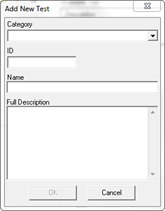
Figure 3
In the Category drop down box, select either Orthopedic Test or Neurological Sign. The Orthopedic Test results display in the SOAP notes as positive or negative. The Neurological Signs results are listed as present or absent. Be sure to choose the appropriate Category for the way in which the results should display in the notes.
Create an ID for the Test or Sign. The ID can be anything that is desired. Note that the ID does not appear anyplace other than this window.
Enter the Name of the Test or Sign.
Type in the Full Description of the Test or Sign. This may include how the Test or Sign is performed as well as an explanation or general interpretation of the result of the procedure. This can be as detailed as desired.
Click OK and the new item is saved and placed on the Available list in alphabetical order.